Presets
A preset is a .meowpreset snapshot of the menu’s visual and layout settings. Selecting one changes the menu immediately.
In Docked and Centered layouts, every preset uses the active GTK theme to distinguish category and auxiliary chrome from the Search and Results content surface. Major-region spacing follows the same theme-derived rhythm, and the Results view and scrollbar trough remain frameless. Full Screen intentionally keeps one uniform surface.
A fresh installation starts on the Modern preset. Presets and their settings are experimental before final 1.0.0; configuration preservation is not guaranteed for upgrades in that period. Back up panel configuration before testing a pre-1.0 release.
Selecting a built-in preset is a full reset
Choosing a built-in preset restores all of its settings, including Calculator defaults. Selecting it again, or using Reset preset, reapplies it. Later changes create an unsaved custom state; built-in presets never change.
Built-in presets
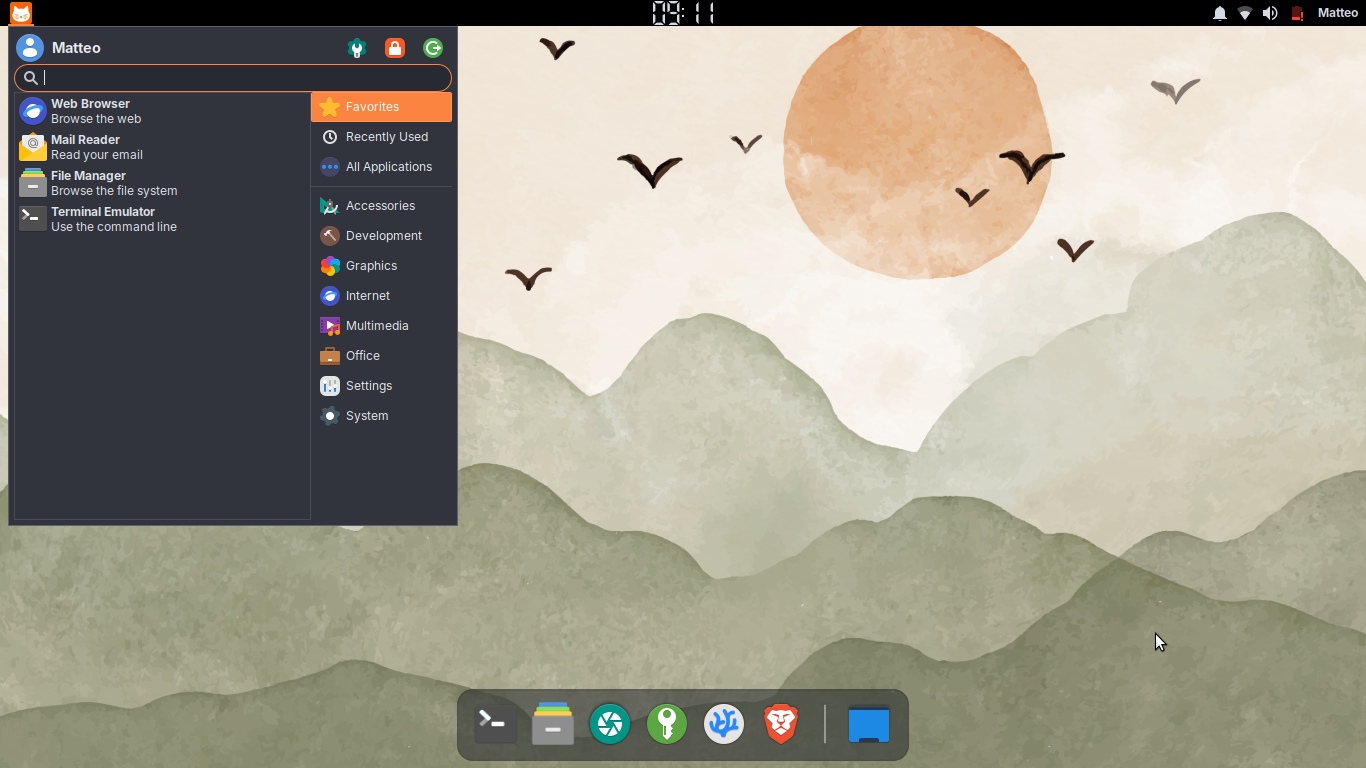
Classic

Traditional compact launcher look. Its primary row is at the top with Profile and Session shown. The docked window uses an application list, a right sidebar, square corners, and a fully solid background (menu opacity 100%). The Apps/Places switch uses text labels and stays on the right side of the secondary row while Session actions occupy the opposite left side. Profile content aligns with the sidebar category icon column. If category names are hidden, Profile and the category icons instead share the sidebar’s centre axis.
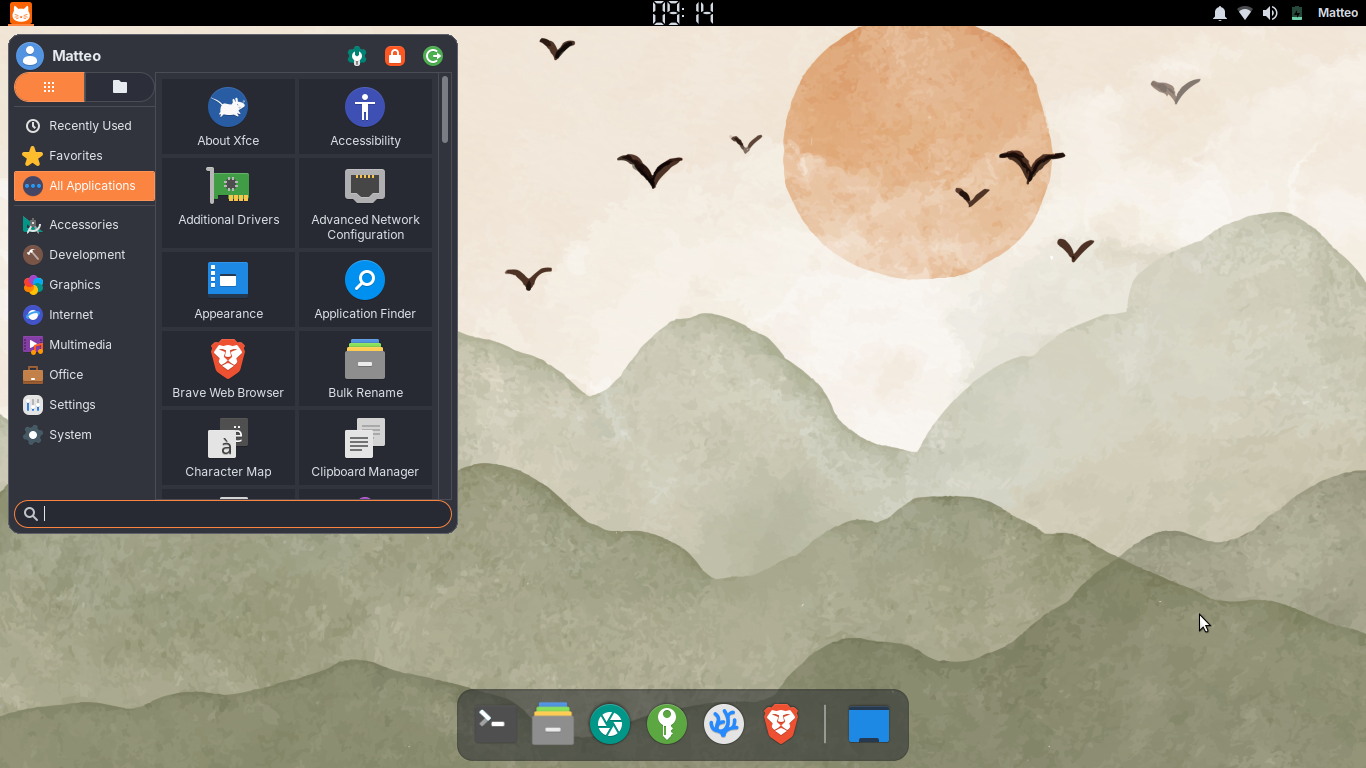
Modern

Contemporary docked layout with its primary row at the top, Profile and Session shown, rounded corners, a left sidebar, a fully solid background (menu opacity 100%), hover-to-switch-category, and Places enabled. The Apps/Places switch uses icon buttons.
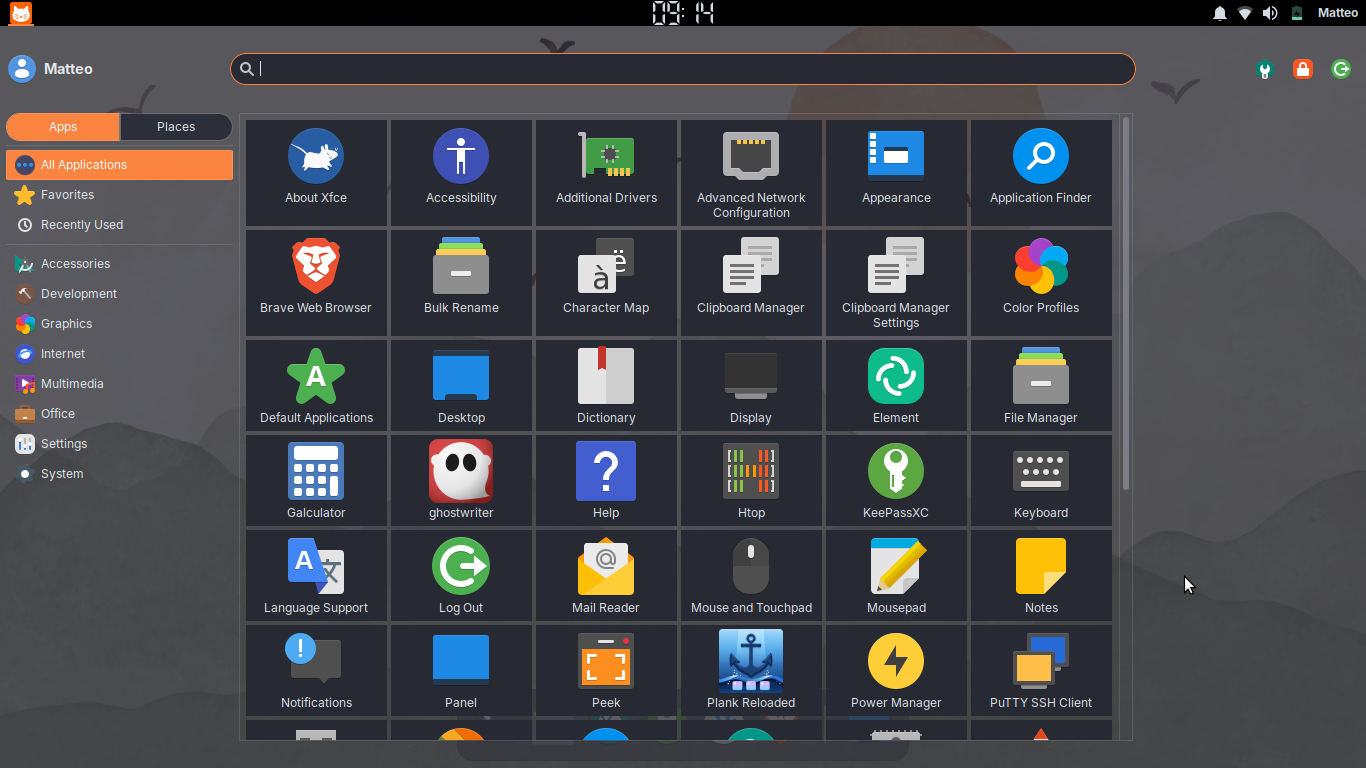
Full Screen

Launcher fills the entire screen over a translucent backdrop (menu opacity 80%). The single primary row stays at the top with Profile and Session shown. Ideal for touch or keyboard-first workflows. Places is enabled, and the left category sidebar uses Small (32 px) icons. The Apps/Places switch uses text labels and remains the first control at the top of the sidebar.
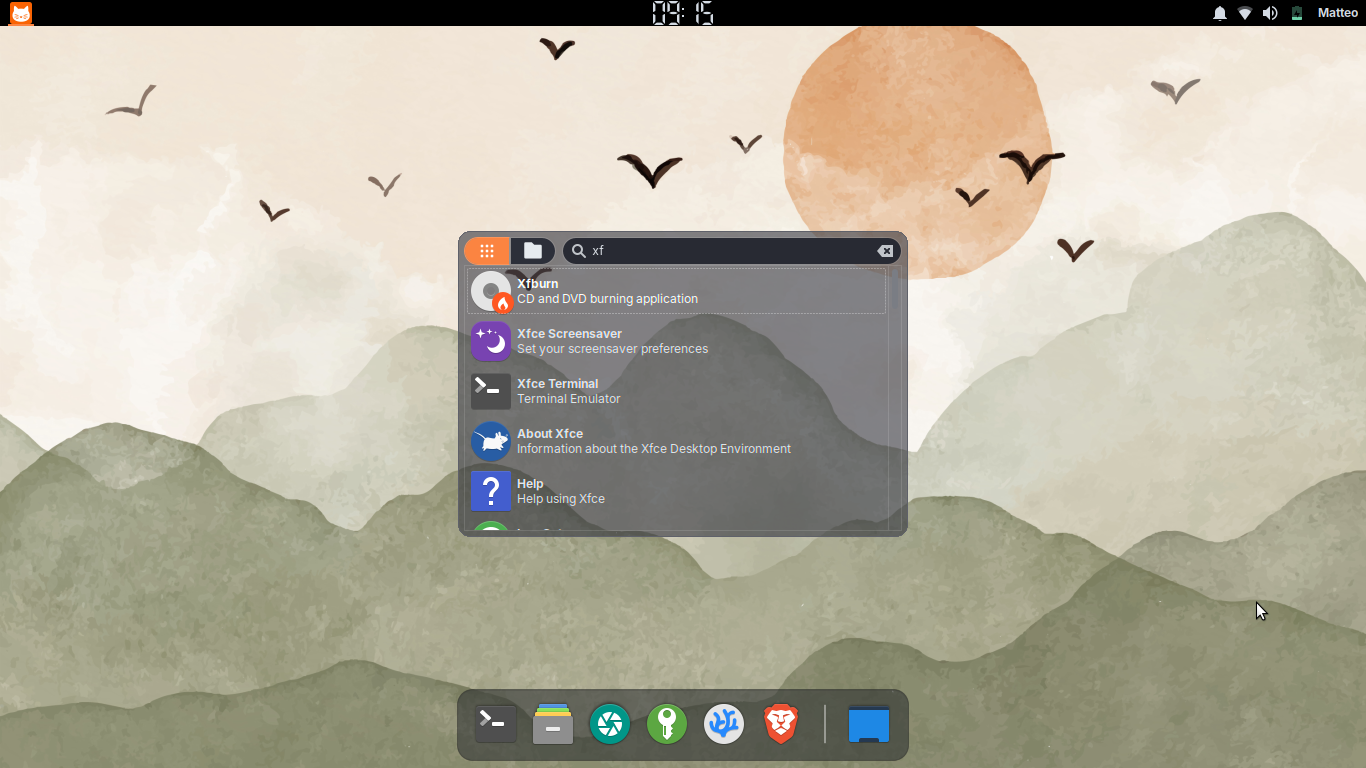
Minimal

A compact, distraction-free launcher: a search bar over an app list, with no sidebar, Profile, or Session controls. Opens centred on screen in a short window with a lightly translucent background (menu opacity 60%), Places enabled with icons, opening on the Recent category. Switch to any other built-in to bring the sidebar, Profile, and Session controls back. The RECENTLY USED heading remains visible when no applications have been used yet; populated sidebar-free Favourites or All Applications defaults use their matching headings and paint immediately.
Calculator defaults are None / Auto / 4 for Classic and bc / Auto / 4 for Modern, Full Screen, and Minimal. The Apps/Places switch uses icons in Modern and Minimal, and text labels in Classic and Full Screen.
All presets use the same trackless Apps/Places presentation: two equal choices with one selected mode and GTK-native interaction feedback. Icon sizes follow the selector’s current sidebar, Search, or Session host. Text choices keep their natural height for translated labels and enlarged text.
When Places is active in a vertical sidebar, Home, History, and Favourites start at the application list’s top anchor. No divider follows Favourites when there is no lower group, and the three navigation icons share an aligned, optically consistent presentation across presets.
In a Horizontal sidebar, the Results/strip and strip/secondary-row edges each have one equal thin theme-derived boundary when the lower control row is shown. The boundaries do not change the preset’s spacing. Results content remains clipped to its visible box while scrolling.
Across Docked and Centered presets, a vertical sidebar reserves its scrollbar width before category overflow occurs, so first hover cannot make the launcher wider. Applications mode starts at the top of the category viewport and paints Favorites, enabled Recently Used, and All Applications on its first frame. When category names are hidden and Profile is wider than the icons, Profile sets the sidebar width with equal tolerance on both sides and both groups remain centred. If Profile is hidden, Search still stops at the Results edge while the visible sidebar keeps its own chrome column; icon-only category controls fill and centre within that column on either side. Full Screen keeps its independent fixed geometry.
All presets share the same keyboard recovery behavior: ordinary typing starts or extends Search even after a live relayout, and arrow movement continues across Search, list or grid Results, sidebar controls, and Session controls. Selected list rows and grid tiles both use the active GTK theme’s selection colours.
The Unsaved custom state
Changing a governed setting shows Unsaved custom in Properties → General. Restore every value to return to the preset name, or choose another preset to discard the changes. The field always shows a preset name or Unsaved custom.
How the dropdown reads at a glance
- Built-in presets are bold.
- Saved custom presets use regular weight.
- Unsaved custom is italic.
Saving, renaming, deleting
Properties → General manages custom presets:
- Save as new… saves the current layout under a unique name.
- Rename… renames the selected custom preset.
- Delete removes it; deleting the active preset restores Modern.
Built-in presets cannot be renamed, deleted, or exported — those actions are available only for your own saved presets.
Exporting and importing
- Export… writes a selected custom preset to a
.meowpresetfile. - Import… can overwrite or rename a clashing custom preset. A built-in name can only be renamed.
Imports ignore unknown settings and use defaults for omitted ones. Invalid or unreadable files are rejected without changing saved presets.
Advanced: hand-authored preset files
You can also write a preset with [Preset] and [Settings] sections:
[Preset]
Name=My Custom Preset
SchemaVersion=1
Id=my-custom
Description=My preset
[Settings]
layout-mode=docked
corner-radius=8
search-bar-position=top
show-profile=true
show-session=true
sidebar-enabled=true
sidebar-position=horizontal
Save the file as <id>.meowpreset (the filename stem must match the Id field). Then place it in:
~/.local/share/meowmenu/presets/
Restart the panel with xfce4-panel -r to see it in Properties → General → Preset. A matching built-in Id overrides the system preset. Unknown keys are ignored; malformed files are skipped.